Keyframes with Environment/IBL
Summary
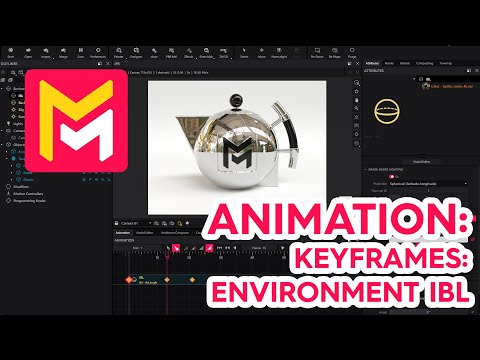
This YouTube tutorial demonstrates keyframe animation in Maverick Render, focusing on animating an image-based lighting (IBL) parameter. It covers basic keyframe creation and manipulation, showing how to rotate the IBL over time. The tutorial then explains a more advanced technique for associating different IBL angles with separate cameras, ensuring smooth transitions between camera viewpoints. Finally, it adds camera movement animation to enhance the scene's visual complexity.
F.A.Q.
-
How do you create a keyframe for an IBL parameter, such as its rotation angle, in Maverick Render? To create a keyframe for an IBL parameter, first select the IBL in the outliner to view its parameters. Locate the specific parameter you want to animate (e.g., angle) and use the context menu to select "Set Animation Key". This action creates a keyframe on the timeline at your current frame position. You can then move to a different point on the timeline, modify the parameter's value, and set another keyframe. The IBL will animate between the values of the keyframes.
-
How can you modify the value of an existing keyframe? To modify the value of an existing keyframe, position the timeline cursor directly on that keyframe. Then, change the value of the parameter you wish to animate (e.g., by scrubbing a slider or entering a number). The keyframe's value will be updated to match the new setting.
-
How do you apply different IBL orientations to different cameras in a scene? To apply different IBL orientations to multiple cameras, begin by creating multiple cameras in your scene and positioning them as required. Then, create a "motion controller camera switch" for each camera and drop them onto the respective camera. On the timeline, adjust the duration and positions of these camera switches to control when each camera is active. Then, while your timeline cursor is at the start of the first camera's segment, set the IBL's angle and create a keyframe. Next, move the cursor to the beginning of the second camera's segment, change the IBL angle, and set a new keyframe. To ensure the IBL angle changes only when the cameras switch, move the second IBL keyframe to the exact point where the camera switch happens, then set a second keyframe with the same value as the first keyframe just before the camera switch.
-
What is the function of "motion controller camera switch" in Maverick Render? The "motion controller camera switch" is used to smoothly transition between different cameras in your scene. By creating one and dropping it onto a camera, you can control when that camera becomes active, and by adjusting the switch duration in the timeline, you can determine the smooth transition time when jumping from one camera view to the next.
-
How do you ensure the IBL angle changes abruptly only when the camera switches? To ensure the IBL angle changes only when a camera switch occurs, you need to place two keyframes on the timeline next to the camera switch. First, set the desired IBL angle for the first camera, creating a keyframe on the timeline in the start of the camera segment. Then, move your timeline cursor to right before the camera switch occurs and create a second keyframe with the same IBL angle. Finally, create another keyframe at the exact point the camera switch occurs with the desired angle for the second camera. This forces the angle to remain constant for the first camera’s duration, then switch abruptly at the precise moment when camera switches.
-
Can you animate camera movement in addition to the IBL? Yes, you can animate camera movement in addition to the IBL. Create a "motion controller transform" and drop it onto your camera. Adjust the transform parameters (such as position, rotation, scale) on the timeline to animate the camera's movement. You can use the timeline to set keyframes at different points and change the transform values of the camera at those points.
-
How do you create camera movement animation using motion controllers? To create camera movement animation using motion controllers, start by creating a "motion controller transform." Then, drop the motion controller onto the camera you want to animate. Adjust the duration of the motion controller on the timeline. Move your timeline cursor to different points on the controller and set keyframes by changing the transform properties of the camera, like position or rotation. The camera will animate between these keyframes.
-
What are the common scenarios where you might use different IBL angles for different cameras? A common scenario where you might use different IBL angles for different cameras is when you want to optimize reflections for different viewpoints. For example, you might position one camera to showcase specific lighting, while another camera shows a different angle, for each of which you want a specific IBL angle for optimal reflections or highlights. This allows you to tailor the environment lighting to the camera's perspective. Another use case might be creating different mood for different camera views, or to provide more clear visualization of an object by providing unique lighting angles.