Workflow 2
Summary
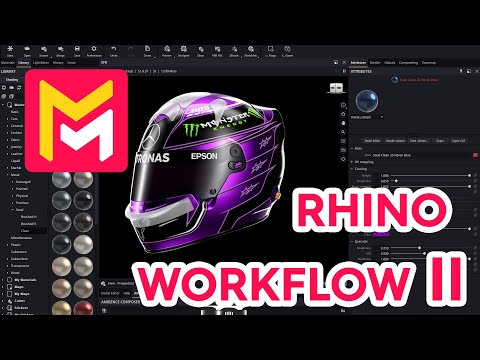
This YouTube video tutorial demonstrates improved features in the Maverick Render plugin for Rhino. The tutorial showcases a workflow using a Formula 1 helmet model, highlighting how to transfer geometry and materials from Rhino to Maverick Render. Key improvements discussed include applying materials to multiple objects simultaneously, managing material overrides, and preserving scene transformations and camera views between the two programs. The video also covers options for synchronizing deletions and managing camera positions for smoother model manipulation and rendering. Finally, the presenter explains how to utilize various preferences within the plugin's settings to customize the workflow to the user's needs.
F.A.Q.
-
How does the Rhino to Maverick bridge handle materials from Rhino? The Rhino to Maverick bridge translates Rhino materials into fully configurable physical materials within Maverick. While Rhino materials are often approximations, with only the main color being meaningful, the bridge allows for detailed adjustments and replacements in Maverick. This ensures that you can achieve the desired visual appearance with physically accurate properties.
-
Can I quickly replace or modify existing materials in Maverick? Yes, you can easily replace materials by dragging and dropping from the Maverick library. Holding the Alt key while dropping a material applies it to all objects with the same original material, replacing it everywhere in one step. The eye-dropper tool lets you pick color from objects to tweak specific colors. Additionally, you can select all objects with a specific material using the context menu and then apply a new material to all of them simultaneously. This streamlined workflow can significantly enhance your productivity.
-
What are the options for controlling material updates between Rhino and Maverick? The bridge's preferences include options like "Preserve Scene Materials." When enabled, Maverick prioritizes materials applied in Maverick, preventing changes made in Rhino from overwriting them. Disabling it allows Rhino material updates to affect Maverick. This gives you control over where the final material decisions are made. There is also a "Preserve Scene Xform" that will preserve the transformations applied to the geometry in Maverick.
-
How are camera views handled between Rhino and Maverick? By default, the Rhino to Maverick bridge transfers all Rhino views (including the main viewport and any named views) to Maverick. In Maverick, each view becomes a camera. The current viewport in Rhino is transferred as a generic 'view' camera. Named views become new cameras in Maverick. There is an option to disable this function.
-
Can I modify the model's position or orientation in Maverick without affecting Rhino? Yes, with the "Preserve Scene Xform" option enabled, any transformations (position, rotation, etc.) made to your model in Maverick are preserved. When you update the scene from Rhino, the model's pose will remain as adjusted in Maverick. This allows you to fine-tune your models position and camera settings directly in Maverick.
-
How does deleting objects in Rhino affect my Maverick scene? The Rhino to Maverick bridge now has a feature that synchronizes deletions. If you delete an object in Rhino and then update your Maverick scene, the corresponding object will also be deleted in Maverick. This helps keep your scene tidy.
-
What is the difference between updating the whole scene and updating selected objects? Updating the whole scene is a full synchronization between the two programs and will ensure all of the view, transformation, deletion, and material update settings will take place. Updating the selection will apply material updates and geometry updates to the selected object(s), but will not transfer camera or transformation changes.
-
What are the main benefits of using the Rhino to Maverick bridge for rendering? The Rhino to Maverick bridge allows users to move their CAD models seamlessly between Rhino and Maverick, without a difficult file export and import process. Additionally, users can benefit from Maverick's physically based materials and advanced rendering capabilities. The bridge provides users with increased control over materials, camera views, and scene transformations and makes the workflow process more flexible by giving the user control over what information from the Rhino scene should or should not be passed over into Maverick.