Abstract Art
Summary
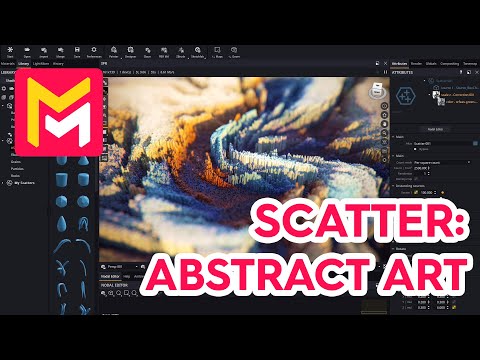
This YouTube video tutorial demonstrates how to create photorealistic abstract art in Maverick Render software. The tutorial uses a base image as a texture map, and then employs a scatter modifier to populate a plane with numerous small objects. These objects inherit color and scale variations from the base image, creating a visually striking effect. Camera adjustments, lighting, and post-processing techniques are also covered, resulting in a final hyperrealistic miniature landscape. The video concludes by encouraging viewers to experiment with the software's features and provided sample scenes.
F.A.Q.
-
How can I use an abstract texture to create photo-realistic art in Maverick Render? You can start by creating a plane primitive and applying your abstract texture to it as the diffuse color. Then, use a scatter modifier to populate the plane with instances of a source object (like a chamfered box). By applying the texture to the source object and mapping its UVs appropriately, each instance will inherit colors from the original abstract texture, creating a diverse and visually interesting array based on the source texture.
-
What is a "scatter modifier" and how does it work? A scatter modifier is a tool that allows you to create a dense population of a source object on a primitive surface (like a plane). You select a source object, and the modifier replicates it across the target primitive. You can control parameters such as the density, scale, and rotation of the scattered instances, and, as seen in this example, map values from a texture for parameters like color and scale. This allows you to generate complex patterns and visual effects using basic source objects.
-
How can I apply color variations from a texture to the scattered objects? By duplicating the abstract texture and applying it to the source object, you can map its colors to each scattered instance using the instance UVs mapping mode in the material editor. This effectively "transfers" the color information from the texture to individual scattered objects, giving each one a different hue corresponding to its location on the original texture. The scatter modifier will handle the UV mapping of each instance.
-
How can I randomize the scale of the scattered objects based on a texture? You can use the abstract texture with the scale Z-map feature of the scatter modifier. This allows you to drive the Z scale (height) of the source objects based on the grayscale values of the texture. Lighter areas in the texture will result in taller objects, while darker areas will result in shorter ones. By adjusting the texture's color and value via a node in the nodal editor, you can achieve the perfect amount of variance.
-
What are some ways to adjust the randomization to create a desired effect? In this example the scatter node is adjusted to disable randomization in some ways and implement it in others. For rotation randomization is disabled, to keep the objects aligned on their axes, while for scale a Z mapping is used to create a variety in height. By using the nodal editor to change the values of the texture, more areas can be forced to be short, and other areas to be tall. The flexibility of the scatter modifier allows for highly varied output.
-
How can I create a "miniature landscape" effect using depth of field? By using Maverick's camera settings you can fine tune the focus point and use a very narrow depth of field. Using ctrl shift click on the focus point in the scene will enable you to quickly and easily set the focus at the correct depth. Combined with a dense population of objects at varying heights, this effect will make the scene feel like a miniature environment.
-
What lighting options are available to enhance the scene? Maverick Render offers a variety of lighting options including environment maps (IBLs) and a sun system. You can easily change the environment to alter the lighting style and mood of the scene. You can also adjust the intensity of the environment and position and intensity of the sun system.
-
How can I quickly achieve a clean, photorealistic render in Maverick? Maverick provides a built in AI denoiser that can rapidly process the render output, drastically reducing the time needed to create a clean image. Using the included tone map panel will let the user quickly fine tune the colors and photographic settings of the image with relative ease.