Introduction
Summary
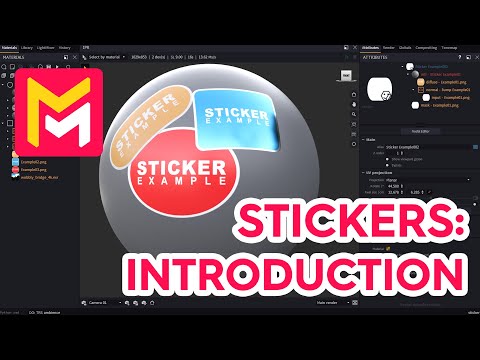
This YouTube tutorial introduces the new sticker feature in Maverick Render software. The video explains how to apply stickers, including using drag-and-drop, adjusting size and rotation, and controlling layering (z-order). It details sticker properties, such as material, mask, and projection types (planar, cylindrical). The tutorial demonstrates advanced techniques, like applying stickers to multiple objects simultaneously and using material overrides for realistic effects. Finally, it showcases pre-made sticker assets available in the Maverick library, such as textures and text.
F.A.Q.
-
What are stickers in Maverick Render and how are they created? Stickers in Maverick Render are object modifiers that consist of a material and a mask, derived from the alpha channel of an image. They are created by dragging and dropping an image file (like PNG or TIFF with a transparent alpha background) onto a target object and selecting the "sticker" option. This automatically applies the sticker to the surface. A "Surface mode" is then activated in the move tool, enabling easy repositioning.
-
How can you adjust the size and position of a sticker? Sticker size can be adjusted using the real size attributes. You can input exact dimensions, adjust one side and use "fit to bitmap" to maintain proportions, and lock the aspect ratio. Stickers can be rotated using the rotation attribute. Repositioning is achieved using the move tool with "surface mode" enabled (activated by pressing the 's' shortcut), which allows sliding the sticker along the surface of the object.
-
How do sticker overlapping and Z-ordering work? When stickers overlap, their stacking order is determined by the "z-order" attribute. By default, stickers are stacked based on their creation order. Adjusting the z-order allows you to change the priority, where a sticker with a higher z-order will appear on top of stickers with lower z-orders.
-
How can you modify an existing sticker? You can easily modify an existing sticker by dragging and dropping a new image onto it; Maverick will update the structure automatically. You may need to use the "fit to bitmap" to correct the proportions. The material of an existing sticker can be changed by dropping a new material into the attributes panel or choosing from the built-in options, such as plastic or metal. You can also change the sticker’s material color by either adjusting the diffuse weight or disconnecting the map and using a custom color.
-
What are the different projection types for stickers and how do they affect their display? Maverick Render offers different projection types for stickers: default, cylindrical, and inverted. Default projection works well on flat surfaces, but cylindrical projection is necessary for cylindrical and tubular objects; its radius can be adjusted for convex surfaces. The projection depth determines how far the sticker extends into the object, and can be inverted to project onto the backside of an object.
-
How can you use the bump and material overrides for more realistic stickers? Maverick Render automatically adds a configurable bump relief to stickers for added realism, simulating small bumps or push buttons. The radius of the bump can be adjusted and can be inverted to create dents or engravings. Stickers also offer override options, allowing you to blend the sticker's material properties with the object's, only using specific aspects from the sticker (e.g., only bump, only roughness, or only diffuse color), leading to interesting visual results.
-
How can you apply one sticker to multiple objects? You can apply one sticker to multiple objects by using "Apply to Selection" from the sticker's context menu. This allows a single sticker to be seamlessly displayed across multiple objects, maintaining continuity. Another method is to pre-select objects before dragging and dropping a sticker. Stickers can be disconnected from objects individually or all at once.
-
Are there any pre-made stickers available in Maverick Render and can these stickers be editable? Yes, Maverick Render includes a library of pre-made stickers, including real-life elements, fingerprints, letters, numbers, and editable texts using Adobe Substance nodes. These library stickers can be added to a scene by dragging and dropping them. These can be adjusted in size, material, blur radius, and material. If you use one of the editable text options, you are able to select the substance node in the attributes panel and change properties such as the text, font, shape, and more.