Beats Headphones
Summary
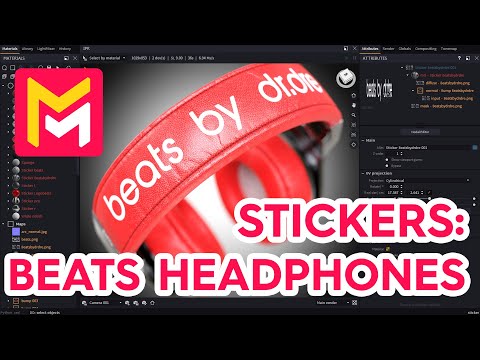
This YouTube video tutorial demonstrates how to use the "stickers" feature in Maverick Render software. The tutorial uses several PNG and TIFF sticker images, explaining the process of applying them to a 3D model. It covers adjusting sticker size, position, and material properties, including bump mapping and blur effects to create various visual looks such as engraving. The video also shows techniques for duplicating stickers and handling issues like surface rotation. Finally, it highlights the versatility and ease of use of the stickers feature within the software.
F.A.Q.
-
How do I apply a sticker in Maverick Render? To apply a sticker, simply drag and drop a PNG or TIFF file (with an alpha mask) onto your model. In the drag and drop dialog, select "sticker". Once created, you can use the move tool to slide the sticker across the object's surface. The "surface mode" will automatically activate when a sticker is created.
-
How can I adjust the size and position of a sticker? You can adjust the sticker's size using the "real size" attributes in the floating move panel. To precisely position the sticker, use the move tool to slide it across the object's surface while in surface mode. Once you're happy with the placement, accept the transform in the floating move panel. You can hide the sticker gizmo for an unobstructed view.
-
Can I change the material of a sticker? Yes, you can change the material of a sticker. In the provided example, stickers are changed to both plastic and metal. This allows you to tailor the appearance of your sticker to match the desired effect, enabling customization of properties such as color and reflectivity.
-
How can I create a bump effect or an engraved effect with a sticker? To add a bump or engraved effect, you'll need to adjust the bump mapping in the sticker material settings. You can find the pixel blur rollup from where you can change the image's blur radius to control the width of the beveling. In the sticker's material settings, isolate the bump effect to see it clearly. For an engraved effect, isolate the bump effect and then invert it in the bump node. Also, you need to adjust the texture's blur to get the right thickness for the effect.
-
How can I duplicate stickers? To duplicate a sticker, select it in the objects panel and choose the "duplicate sticker" option. You can then drag and drop the cloned sticker onto the object and position it. This feature is particularly useful when applying identical stickers to different parts of your model.
-
What is the surface mode and how does it affect sticker placement? Surface mode in the move tool automatically activates when a sticker is created. In surface mode, the sticker will follow the contours of the model's surface as you move it, causing the sticker to rotate as the base surface angle changes. This is useful when trying to align a sticker with a curved surface. However, you can turn this off and use the common move options in order to make further adjustments.
-
How do cylindrical projections work, and when should I use them? Cylindrical projection is useful for applying stickers to curved objects to avoid distortion. It projects the sticker onto a cylindrical shape that surrounds your object. When the sticker appears to be penetrating the model, you may need to change the depth attribute to make it fit correctly. You will want to adjust the radius of the cylinder so that the sticker is properly applied to your object.
-
How do I blend the sticker's bump with the object's bump? You can blend the sticker's bump with the object's bump by using the "blend bump" option in the sticker node. This allows the sticker's relief to appear on top of the existing bump details of the surface, creating a more realistic layered appearance. This is especially effective for adding details on top of materials like leather.