Start Page
Summary
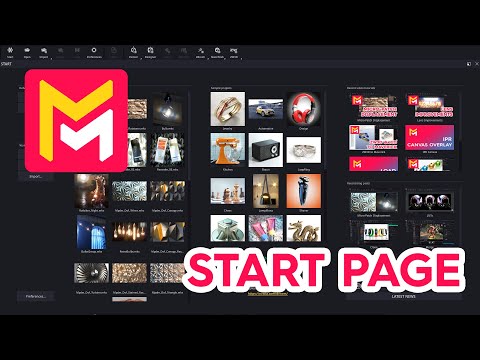
This YouTube tutorial introduces the updated start page in the Maverick Render software. Key features highlighted include a GPU driver check, buttons to create or open scenes (including pre-set options like a teapot and shader ball), a recent projects list, and links to tutorials and social media. The tutorial explains how to customize settings, such as choosing a default scene or disabling the start page. Users are encouraged to explore sample scenes to learn the software. Finally, the video aims to help users navigate and utilize the new interface efficiently.
F.A.Q.
-
Why does the start page sometimes turn red, and what should I do about it? The start page turns red to indicate that your GPU drivers are outdated. If this happens, Maverick Render may fail to function correctly. You must update your drivers by following the link provided, usually to the NVIDIA website, and installing the latest drivers for your graphics card. This ensures that Maverick can use your GPU effectively.
-
What are the different buttons on the left side of the start page, and what do they do? The left side features buttons to manage scenes. The "New" button within the "Default Scenes" group creates the standard teapot scene, suitable for beginners. The "Shader Ball" button creates a scene specifically configured for showcasing materials. In the "Your Scenes" group, the "New" button creates an empty void, ideal for importing your own 3D models. The "Open" and "Import" buttons function as expected, allowing you to load existing scenes or bring in models respectively.
-
Can I customize which scene loads when Maverick starts, and can I disable the start page? Yes, you can fully customize the startup experience through the preferences dialog. Within the preferences, you can set a specific scene to open every time you launch Maverick instead of the default teapot scene. You also have the option to disable the start page entirely, if you prefer to jump directly into your project.
-
Where can I adjust the navigation mode within Maverick? The navigation mode is also configured via the preferences dialog. This allows you to select a navigation style that best suits your workflow and user preference, making it easier to move and interact with your scenes within Maverick.
-
What is the "Recent Projects" list, and how can I manage it? The "Recent Projects" list displays a history of the Maverick documents you've worked on recently. You can remove individual items from the list, clear the entire list, or quickly access the folder where each specific document is stored, facilitating project management and access.
-
What are the "Sample Scenes," and what is their purpose? The "Sample Scenes" are pre-made example scenes that Maverick provides for users to explore. By opening and analyzing these sample scenes, you can learn various techniques and best practices for using Maverick, accelerating the learning process. They are valuable for new users and those looking to expand their skills.
-
Where can I find recent tutorials and blog posts about Maverick? On the right-hand side of the start page, you'll find thumbnails that act as shortcuts to the most recent video tutorials and blog posts published by Maverick's creators. Double-clicking on these thumbnails will redirect you to the corresponding content, helping you stay updated on the latest features and techniques.
-
How can I stay updated with the latest Maverick news? Below the tutorial and blog post shortcuts, you can find direct links to Maverick's social media accounts. Following these accounts will ensure you stay up to date with any news, updates, and announcements regarding Maverick Render as they are released.