Lightmixer
Presentation
Practical Example
Summary
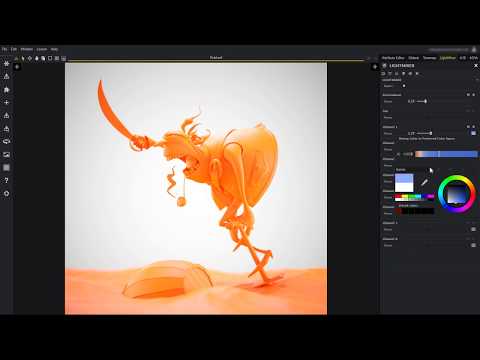
This YouTube tutorial demonstrates Maverick Render's Light Mixer, a real-time interactive relighting tool. The tool allows users to adjust lighting parameters, such as color and intensity, without requiring scene rerenders. Changes are made using intuitive sliders and are instantly reflected. The tutorial shows how to enable Light Mixer, adjust multiple light channels, and finally "bake" the changes into the scene for permanent application. The process is illustrated using example scenes and concludes by highlighting the time-saving benefits of this feature.
F.A.Q.
-
What is the Light Mixer in Maverick Render, and what problem does it solve? The Light Mixer in Maverick Render is a real-time, interactive relighting tool. It addresses the problem of slow, iterative adjustments to lighting by allowing users to edit light parameters (like intensity and color) on the fly without having to restart the rendering process. This allows for rapid experimentation and refinement of the lighting setup.
-
How does the Light Mixer detect and manage lights in a scene? The Light Mixer automatically detects the lights present in a scene and assigns each a corresponding channel. It can handle multiple light sources, including individual lights, the environment (IBL), and the Sun, and can support up to eight channels plus the environment and Sun. The tool then allows users to adjust the properties of each of these channels independently.
-
What parameters of a light can be adjusted in the Light Mixer, and how is it done? Users can adjust the power (intensity) and color of each light channel through sliders and color pickers within the Light Mixer panel. Changes are applied in real-time to the render, allowing for immediate visual feedback without requiring a re-render.
-
What does "consolidating" or "baking" changes in the Light Mixer mean? "Consolidating" or "baking" changes involves transferring the Light Mixer adjustments to the actual scene lights. This action is performed by clicking the "bake to scene" button, and after confirming the action, the light parameters are updated in the actual light objects within the scene. This ensures that the lighting setup is saved with the scene and will render as expected when the scene is re-opened. When baked, the Light Mixer is then disabled and needs to be re-engaged for further use.
-
How does the Light Mixer interact with existing lights in the scene after changes are baked? Once changes are "baked," any edits that are done in the light mixer will ADD to the existing light properties when re-engaged. The light mixer will initially start with the original scene light parameters, and further adjustments in the light mixer will be added on top.
-
Is it possible to disable or mute lights within the Light Mixer? Yes, individual light channels can be muted by clicking their respective icons. Muting all channels at once is also possible via a dedicated "mute all channels" button. Muting effectively disables lights within the Light Mixer, allowing you to see how the lighting changes with different light sources.
-
Does the Light Mixer work with both artificial and environmental lighting? Yes, the Light Mixer works seamlessly with both artificial lights (like point lights or spotlights) and environmental lighting (like image-based lighting or IBL). Both are managed as separate channels in the light mixer allowing for each type to be adjusted independently.
-
Is there a limit to the number of lights the Light Mixer can handle and what is the purpose of that? The Light Mixer can handle up to eight individual light sources plus an additional two channels for the environment and sun. This limit can help the user better manage complex scenes by providing a clear understanding of how the lights in the scene are configured. This is especially useful when combined with the ability to mute channels independently.