JBL Charge3 Speakers
Summary
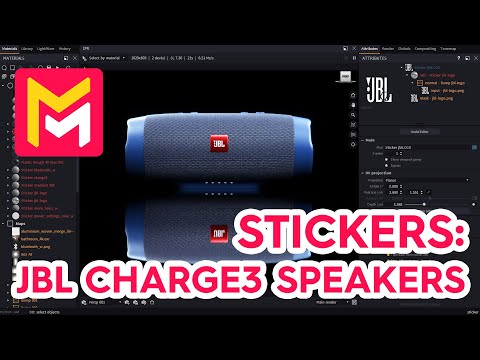
This YouTube video tutorial demonstrates how to use the Maverick Render software to apply various stickers to a 3D model of a JBL Charge 3 speaker. The process involves importing PNG sticker images, utilizing drag-and-drop functionality, adjusting sticker size and position, and modifying material properties like bump intensity and diffuse weight to achieve realistic engraved and emissive effects. Different sticker types are shown, including logos and button indicators, and the tutorial highlights the use of material options and the software's library for efficient workflow. The final result showcases high-quality renders of the finished product. The tutorial emphasizes practical application and visual results.
F.A.Q.
-
How do you add a sticker to a 3D model in Maverick Render? To add a sticker, you drag and drop a PNG image onto your target object in the 3D viewport. In the dialog that appears, select the "sticker" option. This creates a new sticker object that is initially placed based on where you drop the image. You can then use the move tool in "surface mode" to precisely position the sticker on the model's surface.
-
What tools are used to manipulate a sticker after it's placed? Once a sticker is placed, you use the move tool in surface mode to adjust its location on the object's surface. You can also resize the sticker by dragging the corner handles. Additionally, there is a gizmo that appears when a sticker is selected which allows for further manipulation, and can be hidden when its not needed.
-
Can you customize the material properties of a sticker in Maverick Render? Yes, you can fully customize the material of a sticker. For example, you can change the sticker's material to plastic and then edit its color, diffuse weight, and other material properties. You can also adjust the bump map intensity and blur radius to create effects like engravings, and choose whether or not the roughness is taken from the base object or not. You can also make the sticker emissive, and adjust the intensity to simulate backlighting.
-
How do you create an engraved effect with a sticker? To create an engraved effect, use the sticker's bump node. Invert the bump map so that the raised areas of the bump map are now pushed into the object. Also, adjust the bump intensity to control the depth of the engraved effect and adjust the blur radius to soften the edges of the engraved effect.
-
Does Maverick Render have a library of pre-made stickers for common uses? Yes, Maverick Render includes a library of stock images suitable for electronic devices and other common applications, and these can be used directly as stickers. The library can be filtered to make selecting the right sticker easier.
-
How can you precisely place and size stickers for small elements like buttons? You can use the surface mode in the move tool and scale handles. To add stickers to smaller areas of the model, such as buttons, carefully drag the selected sticker from the sticker library. Position and size the sticker using surface mode and scaling handles, then hide the gizmo once you are done editing to allow for a clear view.
-
How can you duplicate a sticker on a model to place it on another side? You can duplicate an existing sticker and move the duplicate to another location on the model using the surface mode. The new sticker keeps all properties of the duplicated one making it easy to have symmetrically-placed or identical stickers on a model.
-
How does Maverick Render handle stickers on curved surfaces? Maverick Render allows you to adjust the depth parameter of the sticker so it conforms to the underlying curved surface of the model. You can fine-tune the bump and the material to make sure the sticker appears correctly even on complex geometry.