Gradient Lights
Presentation
Summary
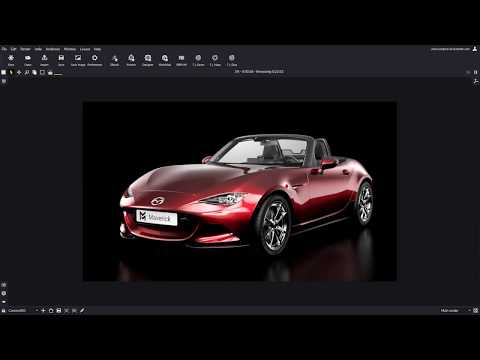
This YouTube video tutorial demonstrates the new gradient lights feature in Maverick Render software. The tutorial explains multiple ways to create and use these lights, including drag-and-drop from a library, creating them from scratch, and applying them to existing lights. It showcases the lights' versatility and HDR capabilities through examples involving product shots of an electric shaver and a vehicle. The tutorial highlights the ease of use and professional-looking results achievable with these new gradient lights, emphasizing features like splatter and real-time editing. The video concludes by showing the final renders.
F.A.Q.
-
What are Gradient Lights in Maverick Render, and how do they differ from traditional lights? Gradient Lights in Maverick Render are a new type of light source utilizing a procedural map. This map allows users to create custom light gradients of varying shapes and intensities, superseding older gradient configuration options. Unlike traditional lights with simple gradient settings, these procedural maps allow for detailed control over the shape, falloff, and HDR profiles of the light, enabling more realistic and nuanced illumination.
-
How can I access and utilize the pre-made Gradient Lights in Maverick Render? The easiest way to use gradient lights is to navigate to the lighting area in the library where a new section called "Lights" has been added. Within this folder, you will find various subcategories like soft boxes, circular spotlights, grids, linear gradients, and umbrellas. You can drag and drop any of these lights directly onto your objects in the scene. Once placed, the standard light manipulation tool will activate, allowing you to adjust its size, position, and intensity with mouse and keyboard shortcuts.
-
What are the different ways to create a gradient light beyond dragging from the library? Besides dragging from the library, there are a few other ways to create gradient lights. First, you can create a gradient light directly from the light creation popup menu. Second, you can create a traditional light and then replace its light map with a gradient light map. Finally, you can create a gradient light map manually and apply it to an existing light or create a brand new light source.
-
What kind of control do I have over the Gradient Light's attributes? Gradient Lights offer extensive control over their attributes. In the attribute editor, when a Gradient Light is selected, you can access the gradient light map properties, including its shape (circular, linear, etc.), and can adjust the size, position and intensity. A significant feature is the HDR profile editor, which allows you to define the light's intensity falloff across its shape via a curve editor, which can be adjusted in real-time. Further customization is available through the "splatter" function, which enables the cloning of a shape in an array, providing versatile options for complex light shapes.
-
How do the 'splatter' and 'HDR profile' options within the Gradient Light map work? The "splatter" feature clones the light shape in a ring or rectangle array, letting you control the number of copies, their spacing, and their orientation. This is particularly useful for creating unique and complex lighting patterns. The "HDR profile" is a curve editor that modifies the light's intensity falloff across the shape by adjusting a curve. It allows a very granular level of control on the intensity distribution within the chosen light shape.
-
Can I save my custom Gradient Lights, and how do I reuse them in other projects? Yes, custom Gradient Lights can be saved for later use. After creating and fine-tuning a gradient light map, you can save it to the library in the lights seam folder using the context menu command "save to lights". When you drop a saved gradient into the scene, Maverick prompts you with options to reuse, rename, or replace the existing map. By choosing to reuse a map, you can keep the same light profile across multiple objects and scene files.
-
How can Gradient Lights enhance the lighting of a product shot or a vehicle rendering? Gradient Lights are designed to enable realistic and professional lighting that avoids the hard edges common with traditional lights. In product shots, gradient lights are used to create soft, attractive reflections with smooth falloffs. Specifically, soft boxes are good for filling areas, linear gradients for highlighting contours, spotlights for accents and grids to light large surfaces and backgrounds. In vehicle rendering, different gradient shapes and intensities help emphasize form and texture, leading to a much more professional final product.
-
How does the Light Mixer interact with Gradient Lights? The Light Mixer in Maverick Render allows you to fine-tune the intensity of each individual light, including Gradient Lights, in a scene. You can turn off all lights and then enable them one by one to adjust their power as you see fit. This lets you create precise and customized lighting setups. In essence, the light mixer complements the flexibility of Gradient Lights by adding a secondary set of controls for adjusting light balance in real-time.