Introduction
Summary
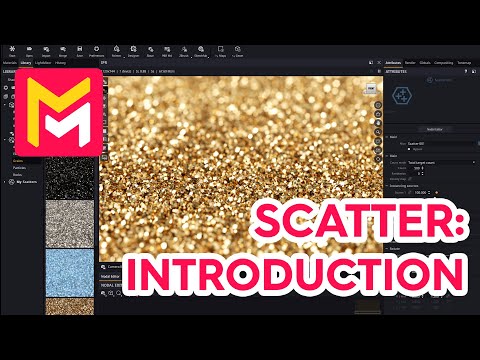
This YouTube tutorial introduces Maverick Render's new scatter system, a tool for efficiently creating large numbers of objects within a scene. The tutorial covers using the system's primitive objects to create base geometries, adding and manipulating multiple source objects, and utilizing density maps for controlled scattering. It also demonstrates collision detection, randomization of object properties (position, rotation, scale, and materials), and the use of instance UVs for texture mapping. Finally, the video explains saving custom scatters for later reuse.
F.A.Q.
-
What is the Scatter System in Maverick Render, and how does it work? The Scatter system in Maverick Render is a powerful object modifier that allows you to massively instantiate (duplicate) one or more source objects onto a base object. It's a way to generate complex geometry structures, like fields of grass, rocks on a surface, or debris, that would otherwise be impractical to create manually due to memory consumption. You apply a Scatter node to a base object and then define the source geometry to be scattered, along with various parameters to control the distribution.
-
How do I add and control source objects within the Scatter system? Once you've added a scatter modifier to an object you can add sources by selecting from the "sources" folder in the Objects Library. You then assign these sources to the 'Source' slots in the scatter modifier. You can control the number of instances (either total or per square centimeter), enabling collision detection to prevent overlapping, adjusting spacing between instances, and randomizing their position, rotation, and scale. Maverick allows you to use both individual objects or grouped objects as scatter sources.
-
What is collision detection and how does it function within the Scatter system? Collision detection is a feature that prevents source objects from overlapping when they are scattered on a base object. While it doesn't provide a perfect, physically accurate simulation, it keeps intersections under control, producing dense distributions without excessive memory usage. It allows you to create tightly packed arrangements while avoiding unrealistic interpenetrations between instances.
-
How can I use density maps to control the placement of scattered objects? Density maps are grayscale images that dictate where scatter instances are placed on the base object. White areas of the map indicate where instances will be generated, and black areas will be left empty. You can use a master density map affecting all sources or per-source density maps for more individual control. You can modify density maps with any adjustments you might want (uv mapping etc.) but will have to update geometry for these changes to take effect.
-
How can I randomize the appearance of scattered objects using Maverick's scatter system? The Maverick scatter system allows randomization using multiple methods. Firstly, there are randomization parameters within the scatter modifier for position, rotation, and scale. Additionally, the system has a collugan map within the material of a source object to randomize the color of each instance across a hue, saturation, and lightness range. Furthermore, you can use switch materials to make different scattered instances have entirely different materials. Finally, you can use the instance UVs option in a texture map in the material to give scattered objects an overall texture at their root with smaller variations per instance.
-
How does the "Align to Normal" feature affect the scattered objects? The "Align to Normal" feature forces the scattered geometry to be oriented vertically along the Z-axis in relation to the surface of the base object. This is particularly useful if the base object is at an angle, making the scattered instances align properly with the surface normals rather than remaining static in world space.
-
Can I save and reuse custom scatter setups in Maverick Render? Yes, you can save custom scatter setups as library files. After creating a scatter you are happy with, right-click on it and select the option to "save to library" which will save it under 'my scatters'. The saved scatter will contain all the settings and configurations you have made. This allows for easy reuse in other scenes by simply dropping the saved scatter from the library onto a base object.
-
What should I be mindful of regarding memory usage when using the Scatter system? While Maverick's instancing system is memory-efficient, it is still important to be mindful of the real-world dimensions of both the base and source objects, as well as the density of the scatter. Even instanced objects require memory to store their positions, orientations, and ray tracing structures. Using very tiny particles on large surfaces can still result in increased memory consumption. It's recommended to experiment with density settings to find a balance between visual complexity and memory management.