Bath Bottles
Summary
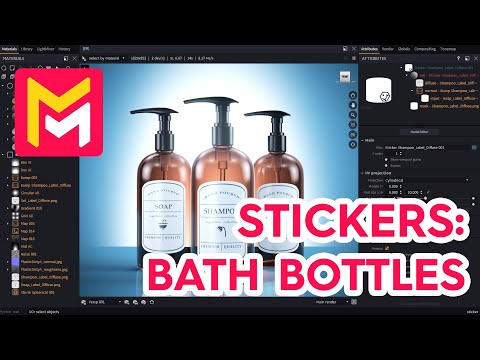
This YouTube video tutorial demonstrates two methods for applying stickers to 3D models in Maverick Render software. The first method involves individually placing each sticker using drag-and-drop, adjusting size and projection, and changing materials. The second, more efficient method uses the software's "duplicate sticker" function to quickly create and position identical stickers, only requiring texture changes. The tutorial focuses on applying stickers to cylindrical bottles, utilizing PNG or TIFF images with alpha masks. The overall goal is to teach viewers how to efficiently add stickers to their 3D models.
F.A.Q.
-
What file formats are compatible for use as stickers in Maverick Render? Maverick Render supports standard image formats like PNG and TIFF for stickers. Crucially, these images need to be saved with an alpha mask to control transparency and shape within the software.
-
How are stickers initially added to a 3D model in Maverick Render? Stickers are added by dragging and dropping the image file directly onto the 3D model from your computer's file system. When prompted by the software's dialog box, you must select the 'sticker' option to ensure the image is applied as a sticker. This automatically activates the 'surface mode' for easy placement.
-
How is the real-world size of a sticker defined in Maverick Render? After adding a sticker, you must specify its actual dimensions. For example, if the sticker should be 10 centimeters tall, you would enter '10' as the height value. The 'fit to bitmap' button ensures that the sticker's proportions match those of your image file.
-
How do you position a sticker on a 3D object? Stickers can be moved around the 3D model using the 'surface mode' within the move tool until the desired position is achieved.
-
What is the role of projection when placing a sticker on a curved surface? When applying a sticker to a cylindrical or curved surface, it is crucial to adjust the projection from the default to 'cylindrical' projection. This allows the sticker to properly wrap around the object. You will need to set the radius value to match the object's dimensions for accurate projection.
-
After the initial setup, how is a sticker’s material modified? After placing the sticker, its material can be modified to suit the desired look. For example, in the tutorial the sticker's material is changed to 'plastic'.
-
What is the benefit of the 'clone sticker' feature in Maverick Render? The 'clone sticker' functionality allows users to quickly duplicate existing stickers, including their materials, and apply them to other parts of a scene. This is especially useful when dealing with similar stickers, reducing the setup time for each instance. After cloning, you need to change the texture on each individual sticker.
-
How is a sticker's appearance changed when cloning identical stickers? When cloning a sticker using the duplicate feature, you can update a cloned sticker's texture by dropping a new image onto it, effectively swapping its face. This allows for variations in the sticker design while maintaining similar size, material, and projection settings.