Micro-Patch
Summary
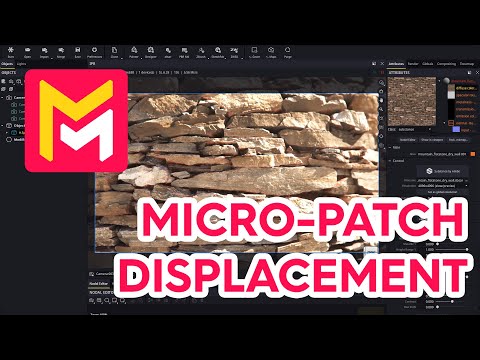
This YouTube tutorial introduces Maverick Render's new displacement mapping system. Key improvements include significantly reduced memory usage and the ability to perfectly capture all details from input texture maps, regardless of resolution. The tutorial demonstrates these features using various examples, including Substance SBSAR materials and procedural maps. It also covers importing materials from different sources and adjusting displacement settings. Finally, it explains how to use a new baked texture node for procedural displacement maps.
F.A.Q.
-
What are the primary advantages of Maverick Render's new displacement system compared to traditional brute-force methods? The new displacement system in Maverick offers two main advantages: Firstly, it captures all the detail present in the input texture map without any loss, eliminating the need for resampling or refinement settings. Secondly, the memory usage is minimal and remains independent of the level of detail, making it particularly suitable for GPU rendering, even with large surfaces or highly detailed textures where the old system struggled with high memory demands.
-
How do I apply a displacement map in Maverick? To apply a displacement map, you can drag and drop a suitable image file directly onto a 3D object in your scene. Maverick will prompt you to select the 'displacement height map' slot. After applying or adjusting the map, remember to use the 'reload geometry' button to refresh the object and view the displacement.
-
How does the midpoint value affect displacement height? The midpoint value in the displacement settings determines the 'ground height' of the displacement. A midpoint value of 0.5 means mid-gray in the displacement map is treated as the base level. White areas will displace outwards from this level, and black areas will displace inwards. By adjusting this midpoint value, you control how the geometry is affected by displacement. For instance, setting the midpoint so black is the base will ensure the geometry only displaces outwards, useful for creating extruding effects.
-
How can I control the tiling of my displacement? There are three methods to control tiling: You can use the map's own UV transform controls in the displacement settings, similar to any other texture map in Maverick. Alternatively, you can use the UV mapping options of the material, which will affect all the maps on that material, including displacement. Lastly, you can apply a UV map modifier to the object, which provides additional tools for adjusting UVs like planar mapping and provides real-time feedback with the 'reload geometry' button after edits.
-
How does Maverick ensure that all detail from a displacement texture is captured? Maverick Render's new system has been specifically designed to capture every single detail in the source map. When using materials such as Adobe Substance .sbsar files, changes to texture resolution (such as going from 1K to 4K) will show as new detail captured in the displacement without any loss or limitation, unlike the previous brute force approach.
-
How does the new system handle memory usage when using high detail or very large displacement maps? The new displacement system has negligible memory usage and the memory consumed is not dependent on the detail level or size of the surface being displaced. This allows you to add crazy levels of detail on huge surfaces without needing to worry about exceeding memory limits or long warm-up times, which was a limitation of the old brute-force approach.
-
How are material importers in Maverick compatible with displacement? Maverick's material importers (Substance Designer, .sbsar, and PBR) automatically bring in displacement textures along with other material textures. All you have to do is enable the displacement toggle for those materials. The PBR importer uses naming conventions to find all textures in a set, although sometimes manual adjustments or renaming textures may be necessary, particularly when dealing with unique naming formats from other sources, such as Quixel, which places resolution settings within the filename.
-
Can I use procedural maps for displacement? While displacement in Maverick only works directly with file-based texture maps, you can use procedural maps by incorporating a 'baked text node' within your material's node graph. This node converts procedural maps into a file text compatible form, enabling you to connect it to the displacement slot. Any changes to the procedural map can be rebaked by using the ‘reload maps’ button to update the ‘baked text’ node with the latest changes and then using the ‘reload geometry’ button to show the changes in the displacement.